What is BCM Call Logger?
BCM Call Logger processes Call Detail Recording (CDR) log files from Nortel / Avaya Business Communications Manager telephone systems. The resulting information is stored in a database which can then be queried to run reports showing what calls have been made or received, allowing users to either run standard BCM Call Logger reports or query the database directly for advanced reporting.. It can retrieve and report on call information from any BCM telephone system.
BCM Call Logger has a number of features, including:
- Can process logs in a variety of formats including Norstar Standard, Norstar All, Meridian and SL-1
- Built-in reporting capabilities, or use your own reporting tools
- Ability to automate log processing using scheduled tasks
- Supports both CDR Pull and CDR Push log file access methods
Which devices does BCM Call Logger support?
| Device | Supported |
|---|---|
| Nortel/Avaya BCM 450 | Yes |
| Nortel/Avaya BCM 400 | Yes |
| Nortel/Avaya BCM 200 | Yes |
| Nortel/Avaya BCM 50 | Yes |
| Nortel/Avaya Meridian | SL-1 Experimental Support |
| Other Nortel PBX devices | Unsure |
| Other Avaya PBX devices | Not yet |
| Other non-Nortel PBX devices | SL-1 Experimental Support |
Support for further devices is dependant on the device supporting the Norstar Standard or CLID reporting format. The Norstar Real Time format is supported for incoming calls only. Experimental support for the SL-1 log format is now in place as of version 1.1.4 but is not guaranteed to be stable.
NB: We recommend you set your BCM to use the Norstar All reporting format as this includes the most information when processing your call log data.
What does it look like?
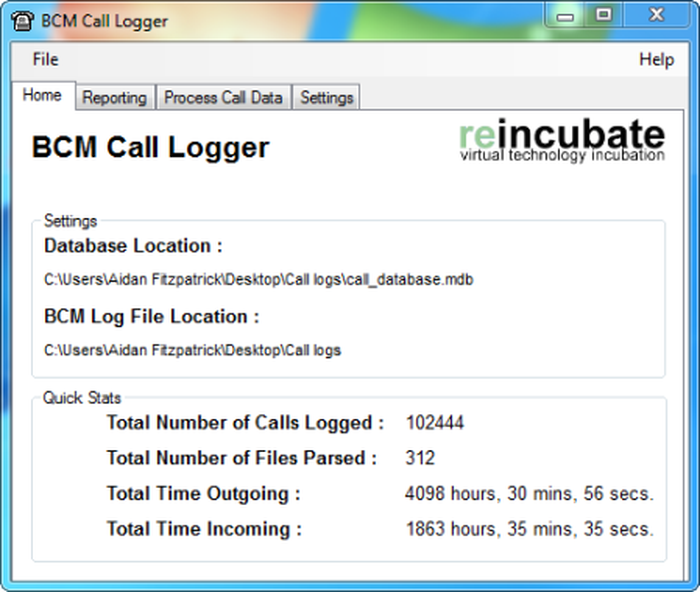
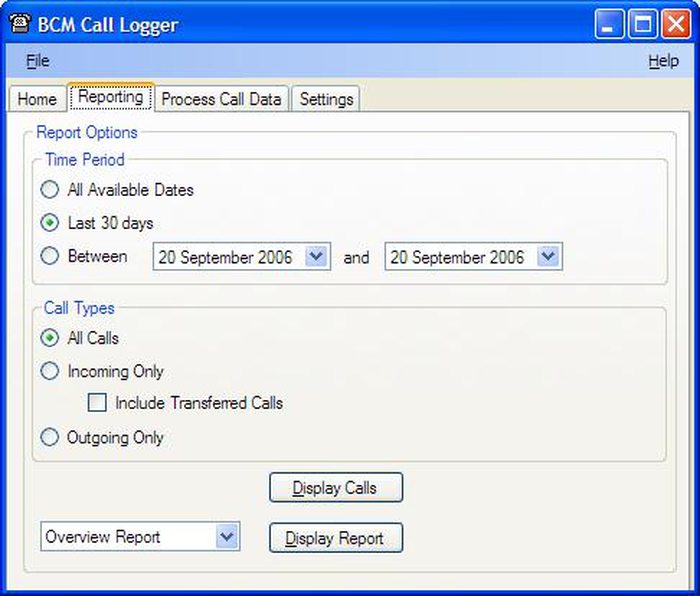
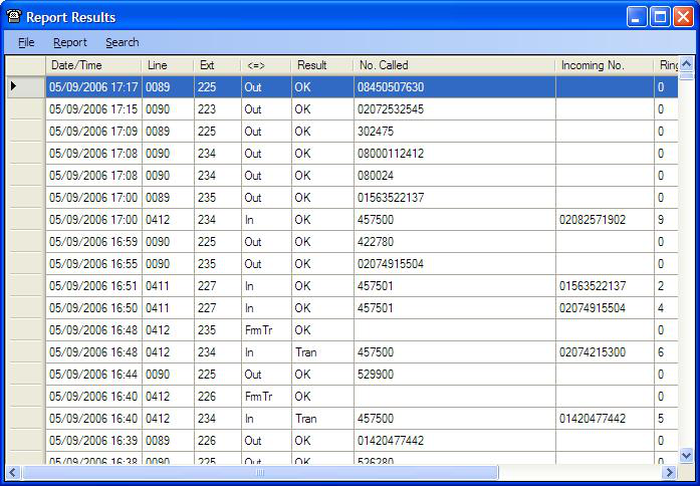
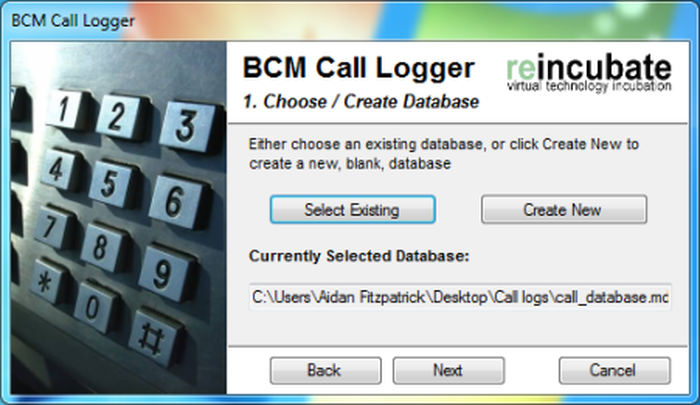
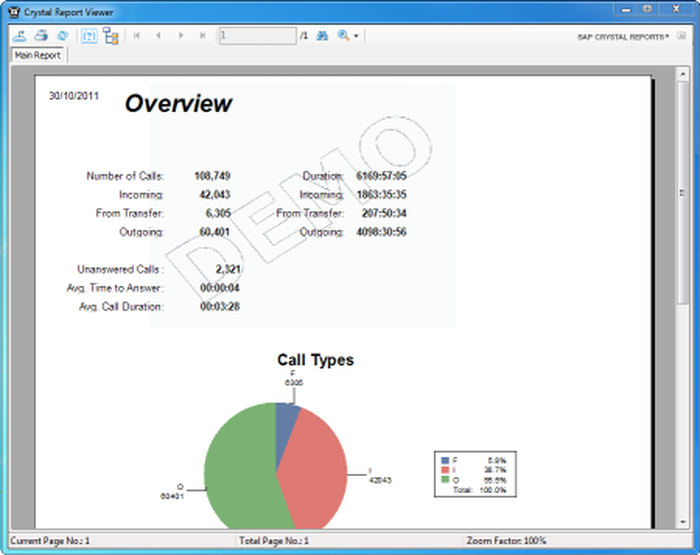
Have a look at the following screenshots to see what the program looks like.
Where can I get it?
You can download a free 30 day demo of BCM Call Logger below. The demo is fully functional, but a nag screen will appear when the program is started, and reports will have a demo watermark on them.
You will need the Microsoft .NET Framework Version 2.0 installed before you can run the demo or the main application.
I like the demo - how can I buy the program?
BCM Call Logger is not free software. We offer a 30 day evaluation period to ensure suitability for your purpose. During this time a notice screen will be displayed when the software is run, and all reports will bear a demo watermark. Once the 30 day period has expired the software will not function until purchased.
A full license for BCM Call Logger costs $120, £75, or €85. You can order instantly through PayPal using the checkout links below. All orders include email support and free upgrades for 12 months or the next major version (which ever is later).
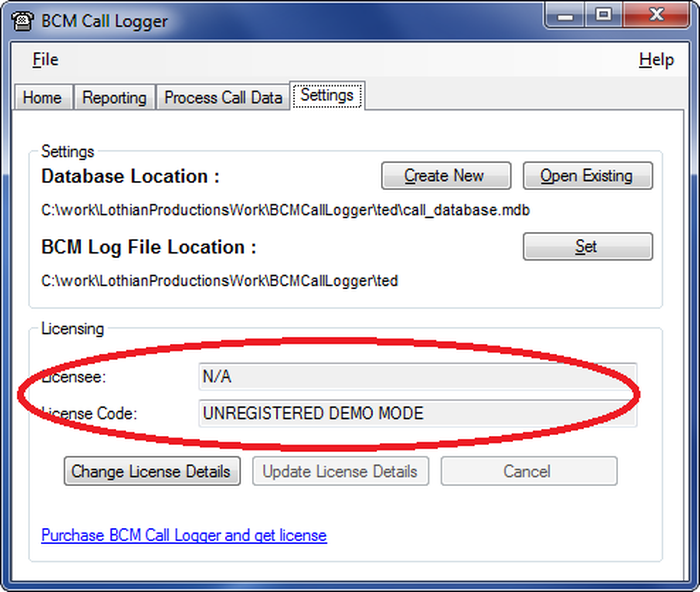
Once you have purchased BCM Call Logger you will be automatically emailed licence information must be entered into the software. To do this, start BCM Call Logger and go to the "Setting" tab. Click the "Change licence details" button, enter your licence information in the fields we've circled in red and then click the "Update licence details" button. If the licence details are accepted this will then unlock all demo restrictions.
Download Demo
BCM Call Logger 1.3.5 DEMO (61mb Msi) (16th April 2016)
You can also download our free CdrPuller utility which will allow you to pull log files from your BCM system without having to set up an FTP server.
How do I make it work?
Download and run the Msi file to start the setup process. This will install the app into a folder of your choice and create shortcuts to both the program and the User Guide in your Start Menu.
The first time the program is run (unless after an upgrade) it will prompt to either create a new database or select an existing one. It'll also ask for the location of your BCM logs.'
Once in the main program, use the Process Call Data tab to get some call data into the system, then start generating reports or viewing call data from the Reporting tab.
Helpful tip:
Right-click an entry in the Display Calls screen for more call options.
Helpful tip:
Hover over a column header for an explanation of the data within that column in the Display Calls screen.
Helpful tip:
Use the Display Report button to generate professional reports which can be printed or exported in a range of formats.
If it doesn't work, let us know. When reporting problems, please be as detailed as possible with error messages.
Can I use BCM Call Logger with SQL Server or MySQL?
Starting with version 1.3.1 we now support SQL Server or MySQL databases as a storage backend for your processed log data. Instructions on how to set up and use alternative databases can be found in the User Guide.
WARNING. Be sure you know what you are doing before you try to use any Advanced database settings with BCM Call Logger. If you are not careful you can render your BCM Call Logger installation unusable. Registered users can email support@reincubate.com for help and advice.
NB. If you are trying to use BCM Call Logger with SQL Server and are getting an error relating to the "SQLNCLI" provider not being registered please ensure you have installed the latest SQL Native Client drivers and that you have used the correct provider name in your connection string. Unfortunately the provider name varies depending on the version of the SQL Native Client drivers installed - for SQL 2005 the provider name is SQLNCLI, for SQL 2008 it is SQLNCLI10, for SQL 2008 R2 the provider name is SQLNCLI10.1 and for SQL 2012 the provider name is SQLNCLI11. See the User Guide for further details.
Further reading
If you're struggling to do something particularly complicated with your BCM call logs, the following resources might help:
- Avaya (current owner of the BCM product range)
Future goals for BCM Call Logger
Ability to use a SQL Database (either SQL Server or MSDE) for the backendImplemented as of version 1.3.0- A Mono build for Linux & OSX users
- Internationalisation: If you have examples of BCM log files in languages other than English, Dutch or French please let us know
Contributors
- Gilberto Tunon (help with SL-1 log format)
- Stéphane Roggero (support for French language log files
- You could be here - help us test the program!